
Project Templates allow you to standardized sets of Project Activities and assign them to new Projects as a Template, rather than creating each Project Activity individually for every Project created. You can create different Project Templates for different production processes, or different Product Categories. For example: the Project Activity steps needed for a Window install may be vastly different than a Roofing install.
You are able to create as many Project Templates as you need. If a single general project template works for you, that is fine, but we usually see a Project Template for each unique Product Category or for each unique process. When you are no longer using a specific Project Template, you can uncheck the Active box, and it will no longer be available for selection from the Project record.
Watch this brief 5-minute video and follow along with the Article below.
From the Nav Items Menu, or the App Launcher search for and select Project Templates.
Change your List View to see the "All" Project Templates List View
From the Project Template List View page, select “New”
Enter a Name for the Template and select the appropriate Product Category(ies). Note the Active checkbox. This is used to determine which Templates are available to be selected from the Project page.
Adding Project Template Activities to a Project Template
Project Template Activities represent the Project Activities that will be created when this Project Template is applied to a Project. Use the Assigned To field to have a Staff member automatically assigned to a Project Activity when it is created by assigning that Staff to the Project Template Activity.
You are able to control the behavior of the date fields by selecting Step Dependencies and specifying the Number of Days from Previous Activity. The Description field can house instructions or other information that can help keep your team on track and the Schedulable checkbox is used when you want to use the Scheduling Calendar to Assign Project Activities or use the Dispatcher tool to Assign Project Activities.
From the Project Template, select “Create Project Template Activity.”
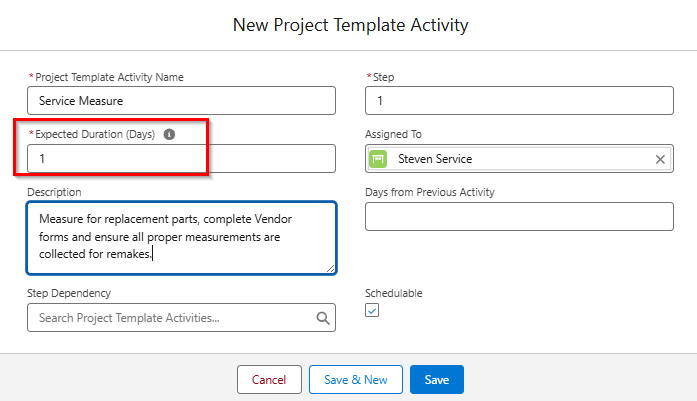
Enter an appropriate Name for the Activity and if you want the Project Activity to be auto-assigned, be sure to fill in the Assigned To field. Only assign a Staff member to a Project Template Activity if you intend for this same person to be assigned every time this template is used. Please note that Description can be incredibly helpful for your team and will display on the Project Activities created when this Project Template is used. Expected Duration (Days) is a required field and must have a value greater than zero. Finally, be sure to check the Schedulable checkbox if this Project Activity needs to be visible within the Dispatcher tool, or if you would like your staff to use the Scheduling Calendar to assign this Activity. The Create Event Custom Setting can be turned on to create a calendar Event for every Project Activity (regardless of if it is schedulable).
 Using Step Dependency
Step Dependency allows you to anticipate the amount of time needed to complete each step in your Production process and ensure that no steps are missed in the process.
You must select a Preceding Project Template Activity (a step prior to the current one) to utilize the Days from Previous Activity field. The Days From Previous Activity field will allow you to predetermine the number of days from the Step Dependency’s completed date. In the example below, our "Service Measure" step is set as the Step Dependency value and we will enter a 1 for the value of the Days from Previous Activity. This means, when the "Service Measure" step is marked as Completed, the "Service Order" step will be given a Due date that is 1 Day after the Completed date from the Step Dependency record.
Note that we are using the Description field to inform the Assigned To staff member what we expect them to do in order to complete this step of the Project.
Click Save & New to continue adding more Project Template Activities to the Template. In this example, we will add a "Service Receive Order" step, a "Schedule Service Install" step, and finally a "Service Install" step.
Next, is the Install activity:
Be sure to check the Schedulable checkbox anytime you need to ensure that Activity can be Assigned to a staff member from the Dispatcher and will show up on the Scheduling Calendar.
Step # Note: You can use Step Dependency in non-chronological and non-sequential order. Step 6 can be dependent on Step 2. Multiple steps can be dependent on the same Step. Step 5 and 6 can both be dependent on Step 2. You can also duplicate numbers. There CAN be two Step 1 or two Step 2.
From the Project Template page, click the Project Template Activities tab to see all the Template Activities associated with this Project Template.
Here you can quickly see Step Dependency and make sure the correct Days from Previous Activity have been set, as well as if these steps will be auto assigned to a Staff member.
See also: How to Create a Project and Apply a Project Template
Comments
0 comments
Please sign in to leave a comment.