
Quick Text allows your Users to insert a predefined message into Tasks and Logged Calls. This makes it easy for your team to create customized scripts, use standardized notes, or create a template to fill out during their calls.
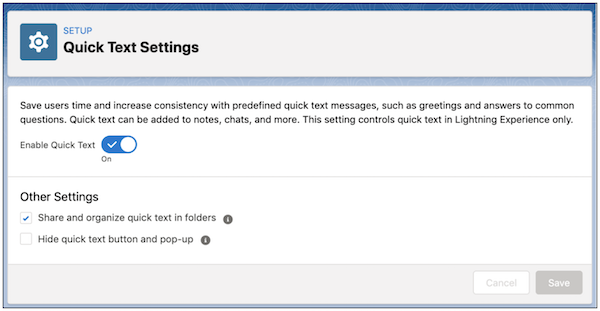
To enable Quick Text, go to Setup > search for "Quick Text" > select "Quick Text Settings" > ensure "Enable Quick Text" is on
Users will need access to User Permissions to use Quick Text:
You may also need to give your Profiles access to the Quick Text tab by going to Setup > Profiles > select the Profile to updated > search for "Quick Text" and select the second Quick Text in the list to update the tab settings
Note: the first Quick Text that appears is to update the object permissions
From the Object Manager > search for Quick Text object > select Fields & Relationships > click on the Category field > update the picklist Values to create sections to store your templates
To create a Quick Text template, go to the Quick Text tab and click "New Quick Text"
Enter a name, message, and select the category you'd like to store it in.
Select which channels this template should be available for.
To use the new Quick Text, go to create a Task or Log a Call, click into the Comments section, then type Control + . to pull up the Quick Text menu and select the appropriate Quick Text template.
Selecting the template will populate the Comments with the Quick Text. If merge fields were used in the template, these will populate with the merge field values.
Additional Resources:
Comments
0 comments
Article is closed for comments.